

If you’ve ever packaged an application for Microsoft Intune, you know the drill. You get handed an MSI or EXE, and the first thing you need to figure out is: what’s the Product Code? What version does it report? What registry key should the detection rule check? What are the silent install switches?
For MSIs, you might open Orca or run a quick PowerShell one-liner. For EXEs, you’re usually stuck installing on a test VM, digging through the Uninstall registry, and hoping you find the right key on the first try.
We got tired of that workflow. So we built something to skip it entirely.
What the Tool Does
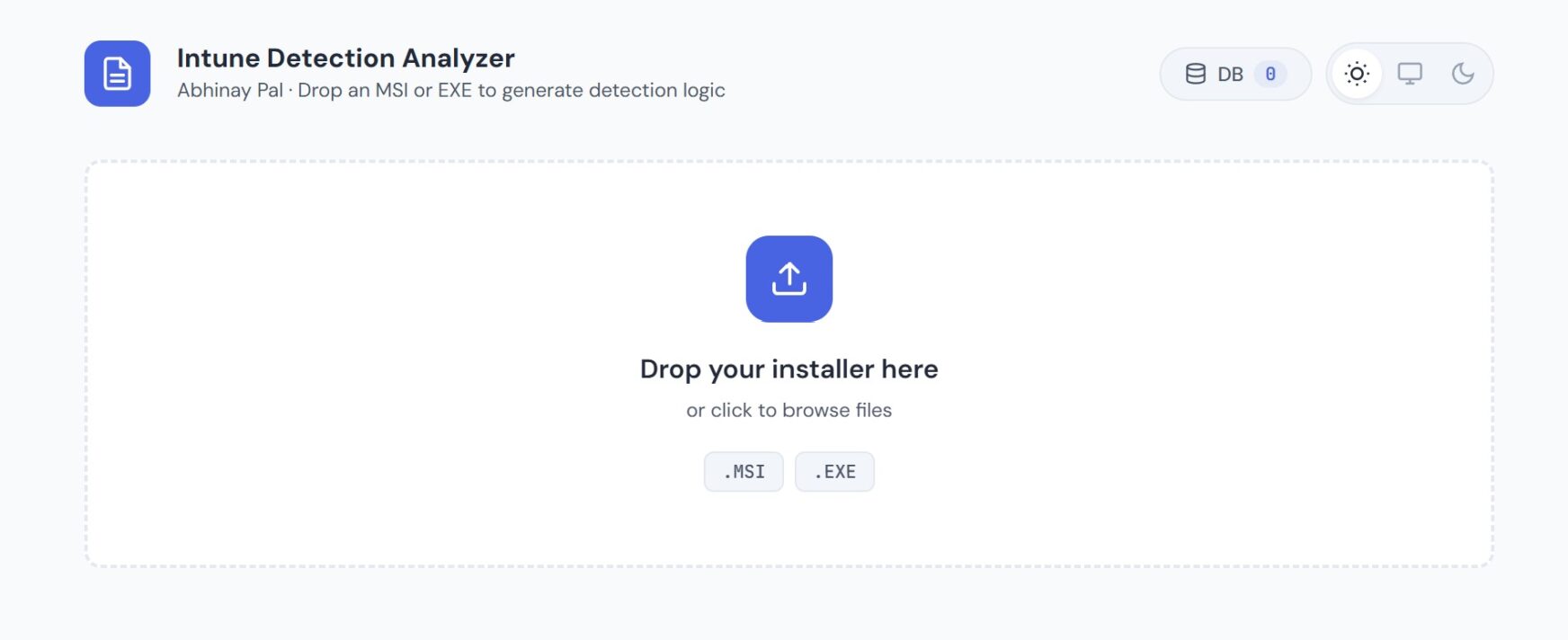
The Intune Detection Analyzer is a browser-based tool that reads installer binaries directly. Drop an MSI or EXE file onto the page, and it extracts everything you need for Intune in a few seconds — no installation required, no test VM, no Orca.
For MSI files, it pulls the Product Code, Product Version, Upgrade Code, and Manufacturer straight from the binary. It then generates the exact Intune detection rule configuration — MSI product code detection with version comparison — ready to paste into the Intune console.
For EXE files, it parses the PE headers and version info resources to extract the product name, version, publisher, and architecture. Since EXE detection is trickier (there’s no universal Product Code), it generates a PowerShell detection script that searches the Uninstall registry by DisplayName across both 64-bit and 32-bit hives. It also detects the installer framework — Inno Setup, NSIS, InstallShield, WiX — which matters because each framework uses different silent switches.
The Silent Install Problem
Detection rules are only half the battle. You also need the silent install and uninstall command lines. Every application is different. Some use /S, some use /silent, some use /VERYSILENT /SUPPRESSMSGBOXES /NORESTART, and some have completely custom switches that you’ll only find buried in a vendor admin guide.
The tool handles this with a layered approach. It first checks a built-in database of 30+ commonly deployed enterprise applications — things like Chrome, Firefox, Zoom, Teams, 7-Zip, CrowdStrike and others. If the app isn’t in the local database, it can search using Google’s Gemini AI with web search grounding. That means Gemini actually searches the web for vendor documentation and packaging blogs before answering, rather than guessing from training data.
When the AI returns a result, you can test it on a machine, and if it works, save it to a personal Custom DB stored in your browser. Next time you encounter that installer, the tool pulls the verified command from your database instantly.
How It Works Under the Hood
Everything runs client-side in your browser. The installer file never leaves your machine — there’s no upload to any server. This matters in enterprise environments where installers may contain proprietary software or internal tools.
The MSI parser reads the OLE Compound Document structure and extracts Unicode strings to find GUIDs, version numbers, and product names. The EXE parser reads the PE headers, locates the VS_VERSION_INFO resource, and extracts the fixed and string file info fields.
For installer framework detection, it scans for signature strings in the binary — “Inno Setup” for Inno, “Nullsoft” for NSIS, “InstallShield” for InstallShield, and so on. This detection feeds into the silent install lookup, since knowing the framework narrows down the correct switches immediately.
What You Get
After dropping an installer, the tool gives you:
Extracted Properties — Product Code, version, manufacturer, architecture, installer framework, and any embedded GUIDs. All copyable with one click.
Detection Rules — Multiple options ranked by reliability. For MSI: product code detection (recommended) and registry detection (alternative). For EXE: PowerShell script detection (recommended), registry detection with a helper script for post-install lookup, and file-based detection.
Intune Configuration — The exact key-value pairs you need to enter in the Intune console, formatted and ready to copy.
Silent Install Commands — Install and uninstall command lines with the correct switches for the detected application and framework.
Export Options — Export everything as JSON for documentation, or download the PowerShell detection script as a .ps1 file ready for Intune.
Try It
The tool is free and runs entirely in your browser. No account needed, no installation, no data uploaded anywhere.
Launch the Intune Detection Analyzer →
If you work with Intune or SCCM regularly, give it a try with one of your installers and let us know what you think. I’m actively improving it!
If you have questions or run into an edge case, reach out to me — I’d love to hear about it.
Leave a Comment