

Updated: 3rd March 2026
A while back, I shared a browser-based tool that reads MSI and EXE installers and extracts Intune detection rules — no installs needed. It pulls product codes, registry paths, file versions, and silent switches straight from the binary.
That tool solved a real problem. But it had a limitation: static analysis can only go so far. It reads what the installer says it’ll do — not what it actually does on a real system.
So I built the next layer.
What’s New: The Sandbox Diff Engine
The new addition is a PowerShell-based sandbox analysis system that actually installs the app on a clean VM, captures a before-and-after diff of the entire system, and outputs verified detection rules, silent install/uninstall commands, and a ready-to-upload Intune detection script.
It comes in two parts:
Get-InstallerDetectionLogic.ps1 — the diff engine itself. Run it on a test VM. It snapshots the registry (all 4 Uninstall hives), the file system, services, scheduled tasks, startup entries, and environment variables. Then it installs the app silently, snapshots again, and diffs the two states. Every detection rule it generates comes from observed system changes — not from reading metadata.
Invoke-SandboxAnalysis.ps1 — the Hyper-V orchestrator. This wraps the diff engine with full VM lifecycle management: creates a checkpoint, copies the installer in, runs the analysis via PowerShell Direct, extracts the results, and restores the VM to its clean state. For batch mode, it repeats this for every installer in a folder — completely unattended.
Why This Matters
If you’ve ever deployed a Win32 app in Intune and had the detection rule fail — wrong registry path, version string mismatch, GUID that changed between installer versions — you know the pain. The usual workflow is: install on a test machine, manually hunt through the registry, guess which key Intune should check, hope the uninstall string works.
The sandbox approach eliminates that entire cycle:
- Detection rules come from real system changes. The diff engine checks all 4 Uninstall registry hives (HKLM 64/32-bit, HKCU 64/32-bit) and finds exactly where the app registered itself.
- Silent switches are tested, not guessed. The engine reads the installer binary, detects the packaging framework (Inno Setup, NSIS, InstallShield, WiX Burn, Advanced Installer, or MSI), and uses the correct silent flags. For unknown frameworks, it tries 8 common switch patterns and validates that the install completed without opening GUI windows.
- Uninstall commands are verified. After capturing the diff, the engine runs the uninstall command and confirms the registry entry was actually removed. The output marks each command as VERIFIED or UNVERIFIED so you know exactly what to trust.
- Prerequisites are separated automatically. If the installer bundles VC++ Redistributables, .NET Framework, or other runtime dependencies, the engine identifies them and lists them separately — they don’t pollute your detection rules.
The Detection Script: 3-Layer Approach
Every analysis generates a PowerShell detection script (.ps1) ready to upload to Intune. It uses a three-layer detection strategy:
- Direct registry key — Checks the exact Uninstall key path found during the sandbox install. This is the fastest check and works for most apps.
- DisplayName search fallback — If the direct key isn’t found (which happens when GUIDs change between versions), it searches all Uninstall hives for a matching DisplayName with a version comparison.
- File-based fallback — Checks for the main executable with version validation. This catches edge cases where the app is installed but didn’t register properly.
Exit code 0 with STDOUT output = detected. Exit code 1 = not detected. Standard Intune detection script behavior.
Batch Mode: Process Dozens of Apps Overnight
This is where the orchestrator really shines. If you’re migrating 300+ apps from SCCM to Intune (which is exactly what my team is doing across 10 sites), you can’t afford to analyze each one manually.
Point the orchestrator at a folder of installers:
$cred = Get-Credential -UserName "LocalAdmin"

.\Invoke-SandboxAnalysis.ps1 -VMName "Win11-Clean" `
    -InstallerFolder "C:\Apps\ToMigrate" `
    -OutputPath "C:\Results" `
    -Credential $cred
It processes each installer sequentially: checkpoint → copy → install → diff → extract results → restore → next app. Budget roughly 3-5 minutes per installer. A batch of 50 apps runs in about 3-4 hours unattended.
The output is organized per-app:
PxlTech-Results/
├── Zoom/
│   ├── Zoom-detection-20260304-120000.json
│   └── Zoom-IntuneDetection-20260304-120000.ps1
├── 7zip/
│   ├── 7z2408-x64-detection-20260304-120045.json
│   └── 7z2408-x64-IntuneDetection-20260304-120045.ps1
└── batch-summary-20260304-120000.csv
The batch summary CSV gives you a quick pass/fail view across all apps — installer name, status, duration, output paths, and any error messages.
Web Tool Now Imports Sandbox Results
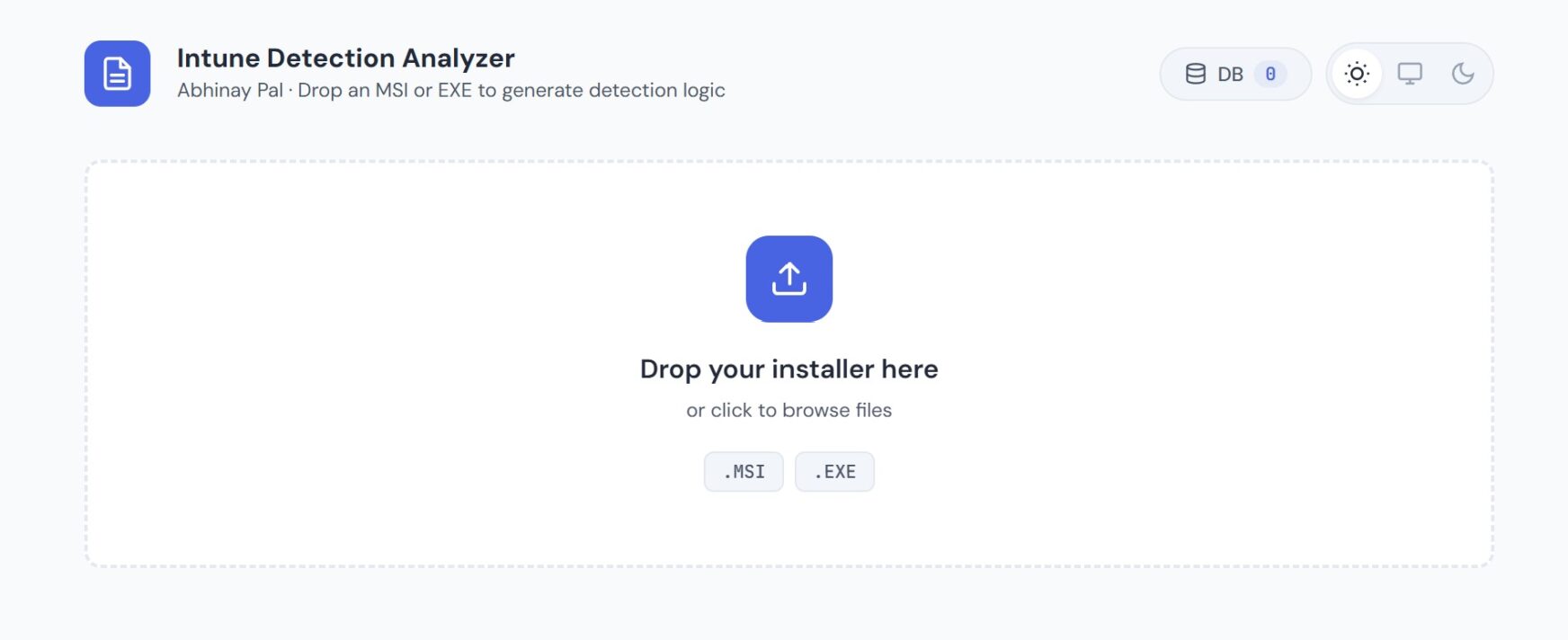
The browser-based analyzer tool now accepts sandbox JSON files alongside MSI and EXE installers. Just drag and drop the JSON output from the sandbox analysis onto the drop zone.
When you import a sandbox JSON:
- All properties auto-populate: product name, version, manufacturer, product code, registry key, install scope, main executable, framework, silent switches — everything the sandbox captured.
- Detection rules display with green “Sandbox Verified” badges next to the priority labels (Recommended / Alternative / Advanced).
- A new “Sandbox Analysis Details” section shows prerequisites that were installed, new services, new scheduled tasks, new startup entries, and whether the installer triggered a reboot.
- Silent install and uninstall commands show with verification status.
This gives you a visual review layer before deploying to production. The detection script is identical whether you grab it from the sandbox output directly or through the web tool — the web tool just makes it easier to review and document.
Framework Detection Table
The diff engine identifies the installer packaging framework by scanning the binary for signature strings:
| Framework | Silent Switches | How It’s Detected |
|---|---|---|
| MSI | msiexec /i "file.msi" /qn /norestart | File extension .msi |
| Inno Setup | /VERYSILENT /SUPPRESSMSGBOXES /NORESTART /SP- | “Inno Setup” in binary |
| NSIS | /S | “Nullsoft” or “NSIS” in binary |
| InstallShield | /s /v"/qn /norestart" | “InstallShield” in binary |
| WiX Burn | /quiet /norestart | “wixburn” in binary |
| Advanced Installer | /qn /norestart ALLUSERS=1 | “Advanced Installer” in binary |
| Unknown | Tries 8 common switches sequentially | No signature found |
For unknown frameworks, the engine tries each switch pattern and monitors whether the installer completed silently (no GUI windows opened, process exited cleanly). If a GUI window appears, it stops the brute-force loop and falls back to manual mode.
What the System Diff Captures
The before/after comparison covers:
- Registry — All 4 Uninstall hives (HKLM 64-bit, HKLM 32-bit via WOW6432Node, HKCU 64-bit, HKCU 32-bit). Captures DisplayName, DisplayVersion, Publisher, InstallLocation, UninstallString, QuietUninstallString, and ProductCode.
- File system — New directories and files in Program Files and Program Files (x86). Identifies the main executable with file version info.
- Services — New Windows services registered during installation.
- Scheduled tasks — New non-Microsoft tasks.
- Startup entries — New Run/RunOnce entries in both HKLM and HKCU.
- Environment variables — New or modified machine-level environment variables.
- Pending reboot — Detects if the installer set a pending reboot flag.
Quick Start
Prerequisites: Windows 10/11 Pro or Enterprise with Hyper-V, a clean Windows VM (just OS updates — no apps), and both scripts in the same folder.
Standalone (on a test VM directly):
.\Get-InstallerDetectionLogic.ps1 -InstallerPath "C:\Staging\Zoom.exe"
Automated (from the host, single app):
.\Invoke-SandboxAnalysis.ps1 -VMName "Win11-Clean" `
    -InstallerPath "C:\Apps\Zoom.exe"
Automated batch (folder of installers):
.\Invoke-SandboxAnalysis.ps1 -VMName "Win11-Clean" `
    -InstallerFolder "C:\Apps\ToMigrate" `
    -OutputPath "C:\Results"
After the analysis, you get: a JSON file with all the data, a .ps1 detection script ready for Intune, and console output with a QUICK REFERENCE section showing exact install/uninstall commands to paste into the Win32 app configuration.
What’s Next
The browser-based tool handles quick static analysis — drop an installer, get detection rules in seconds. The sandbox system handles deep analysis — verified rules from actual system changes. Together they cover the full spectrum from quick lookups to production-grade verification.
I’m planning to share the scripts publicly soon. If you’re doing an SCCM-to-Intune migration and spending hours per app on detection rules, this should cut that down to minutes.
Built by Abhinay Pal. More tools and tutorials at pxltech.co.in
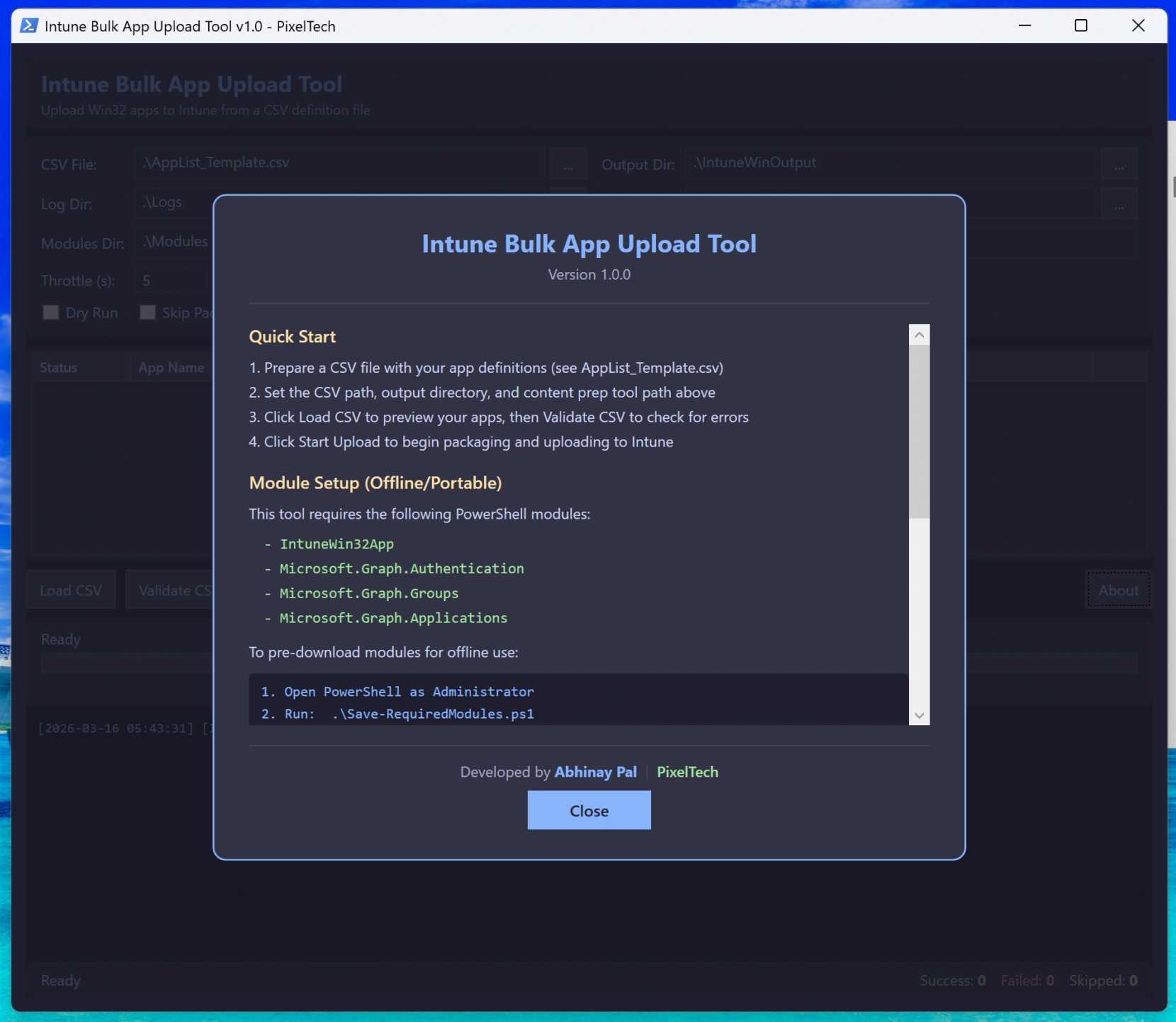
Here are some snips for reference
Leave a Comment