

In enterprise environments, IT support teams often need quick access to device information when troubleshooting issues. Instead of asking users to run commands or navigate through system settings, what if device details were always visible on the desktop?
In this guide, I’ll walk you through deploying a custom Device Info Overlay that displays essential system information as a sleek, semi-transparent widget on the user’s desktop. We’ll package it as a Win32 app and deploy it through Microsoft Intune.
What We’re Building
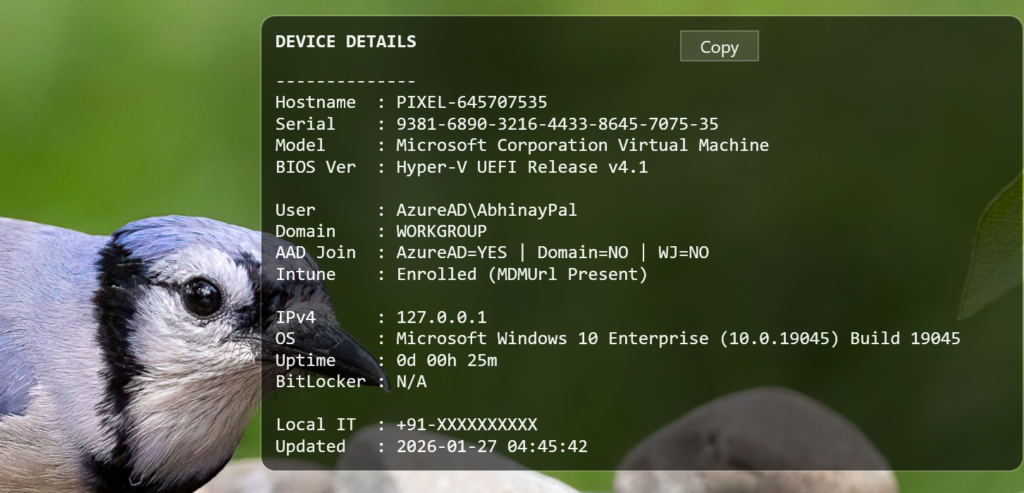
The Device Info Overlay is a WPF-based PowerShell application that displays:
- Hostname and Serial Number
- Device Model and BIOS Version
- Logged-in User and Domain
- Azure AD Join and Intune Enrollment Status
- IPv4 Address and OS Version
- System Uptime and BitLocker Status
- Local IT Contact Number
The overlay includes a Copy button that allows users to copy all device details to the clipboard with a single click, making it easy to share information with IT support.
Prerequisites
- Microsoft Intune admin access
- Microsoft Win32 Content Prep Tool (IntuneWinAppUtil.exe)
- Windows 10/11 target devices
- Basic PowerShell knowledge
Solution Architecture
The solution consists of two PowerShell scripts:
- Display_SysInfo.ps1 – The main overlay script that creates the WPF window and displays device information
- Deploy-DeviceOverlay-Hidden.ps1 – The deployment script that handles installation and persistence
The Challenge with Intune Deployment
Deploying GUI-based PowerShell scripts through Intune presents several challenges:
- SYSTEM Context: Intune Win32 apps run as SYSTEM, which has no desktop access
- Visible PowerShell Window: Standard execution shows a PowerShell console window in the taskbar
- Persistence: The overlay needs to launch automatically at every user logon
- Scheduled Task Limitations: Creating scheduled tasks for user groups from SYSTEM context often fails with ‘Access Denied’
Our Solution
We solve these challenges using a combination of techniques:
- VBScript Wrapper: Launches PowerShell completely hidden (no taskbar icon)
- Registry Run Key: Uses HKLM Run key instead of Scheduled Tasks (works from SYSTEM context)
- Local File Copy: Copies scripts to C:\ProgramData\Scripts before execution
Step 1: The Display Script (Display_SysInfo.ps1)
This script creates a WPF-based overlay window. Let’s examine the key components:
Configuration Section
$LocalITNumber = "+91-XXXXXXXXXX" $RefreshSeconds = 30$marginRight = 18 $marginTop = 18
Update the LocalITNumber with your organization’s IT support contact. The overlay refreshes every 30 seconds by default.
Device Information Collection
The script uses multiple methods to gather device information:
- dsregcmd /status: Retrieves Azure AD and domain join status
- Win32_ComputerSystem: Gets manufacturer, model, and domain information
- Win32_BIOS: Retrieves serial number and BIOS version
- Registry Enrollments: Checks Intune enrollment status
- Get-BitLockerVolume: Checks BitLocker protection status
Step 2: The Deployment Script (Deploy-DeviceOverlay-Hidden.ps1)
This script handles the Intune deployment complexities:
File Deployment
# Copy ALL files from Intune cache to local folder $destFolder = "C:\ProgramData\Scripts" Get-ChildItem -Path $sourceDir -File | ForEach-Object { Copy-Item -Path $_.FullName -Destination $destFolder -Force }
VBScript Hidden Launcher
The key to hiding the PowerShell window is using a VBScript wrapper:
$vbsContent = @" Set objShell = CreateObject("WScript.Shell") objShell.Run "powershell.exe -NoProfile -ExecutionPolicy Bypass -WindowStyle Hidden -File ""$destScript""", 0, False "@
The ‘0’ parameter in objShell.Run ensures the window is completely hidden, and ‘False’ means it won’t wait for the script to complete
Registry Run Key for Persistence
Instead of using Scheduled Tasks (which fail from SYSTEM context), we use the HKLM Run key:
$runKeyPath = "HKLM:\SOFTWARE\Microsoft\Windows\CurrentVersion\Run" $runKeyName = "DeviceInfoOverlay" $runKeyValue = "wscript.exe `"$vbsLauncher`"" Set-ItemProperty -Path $runKeyPath -Name $runKeyName -Value $runKeyValue -Force
This ensures the overlay launches for ALL users at logon, and SYSTEM has permission to write to HKLM.
Step 3: Package for Intune
Create a folder with both scripts and package using IntuneWinAppUtil.
Step 4: Configure in Intune
Create a new Win32 app in Intune with these settings:
| Setting | Value |
|---|---|
| Install Command | powershell.exe -ExecutionPolicy Bypass -File Deploy-DeviceOverlay-Hidden.ps1 |
| Uninstall Command | powershell.exe -Command "Remove-ItemProperty -Path 'HKLM:\SOFTWARE\Microsoft\Windows\CurrentVersion\Run' -Name 'DeviceInfoOverlay' -Force; Remove-Item 'C:\ProgramData\Scripts' -Recurse -Force" |
| Install Behavior | User |
| Device Restart | No specific action |
Detection Rule
| Setting | Value |
|---|---|
| Rule Type | File |
| Path | C:\ProgramData\Scripts |
| File | Launch-Overlay.vbs |
| Detection Method | File or folder exists |
Step 5: Assign and Deploy
Conclusion
This solution provides a clean, professional way to display device information to users while maintaining a seamless experience. The combination of VBScript launchers and Registry Run keys overcomes the typical challenges of deploying GUI applications through Intune.
The overlay is particularly useful for:
- IT support teams troubleshooting remote devices
- Help desk scenarios where users need to provide device details
- Shared device environments like labs or kiosks
- Quick verification of Intune enrollment and Azure AD join status
Download
Download the complete solution from GitHub:

Leave a Comment